How to Count Your Waves While Surfing (Automatically)
An automatic wave counter counts rides while you surf, so you do not have to remember or tally them in the water. Gone Surfing shows the count on Apple Watch and lets you inspect individual waves on iPhone after the session.
Why count your waves?
Wave count is a simple way to see how much riding a session contained. Read it alongside the conditions, your positioning and the time you spent paddling:
- How many rides you got at a spot and in its conditions
- How your positioning and effort shaped the session
- How crowds, swell direction and boards changed the result
- How much time went into riding versus paddling
How does an automatic wave counter work?
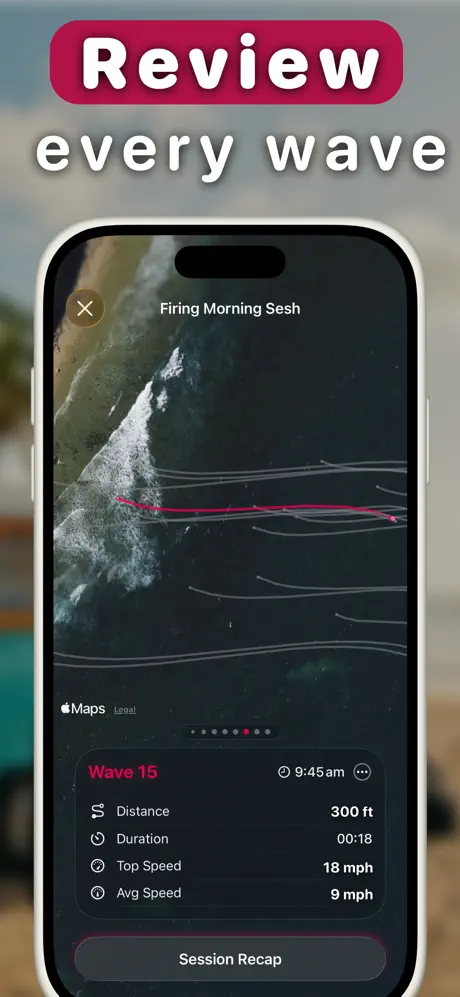
Gone Surfing uses Apple Watch motion and GPS data to identify rides automatically, then records each ride with details such as distance, duration and speed.
Automatic detection is not perfect. If the count looks wrong, open the Wave Carousel and remove a false positive.
Why do surf apps miss waves?
Slow, small and short rides are harder for a tracker to separate from ordinary paddling. Gone Surfing's detection is tuned for slow and small waves.
As one App Store reviewer put it: "Gone Surfing app has a nicely dialed sensitivity to track all my waves caught."
How to count your waves with Gone Surfing
- Start a session on your Apple Watch as you paddle out.
- Surf normally. The count updates automatically on your wrist.
- Open the Wave Carousel on your iPhone to swipe through each ride and inspect its GPS line and stats.
- Clean up if needed. Remove a false positive from the session details screen.
- Watch the trend. Use wave count with cadence, the GPS map and your surfing ratio to understand the session.
Beyond the count: Gone Surfing also tracks your wave cadence, the average time between rides. That timing, together with the map, shows how the session unfolded. See How to Catch More Waves.

Count Waves — Automatically
Automatic wave detection on Apple Watch, with individual rides to review after your surf. Free to download.
Download Gone Surfing